User Guide
The design of SimplePOS features a straightforward and intuitive user interface. We will guide you through the setup process step by step.
After installation, you should
- Add Category
- Add Customer
- Add User Role for Staff
- Save Settings (mail, booking, scale barcode and payments)
- Add taxes and products
- Start creating sales and purchase order
Home Page
(When Booking Enabled)
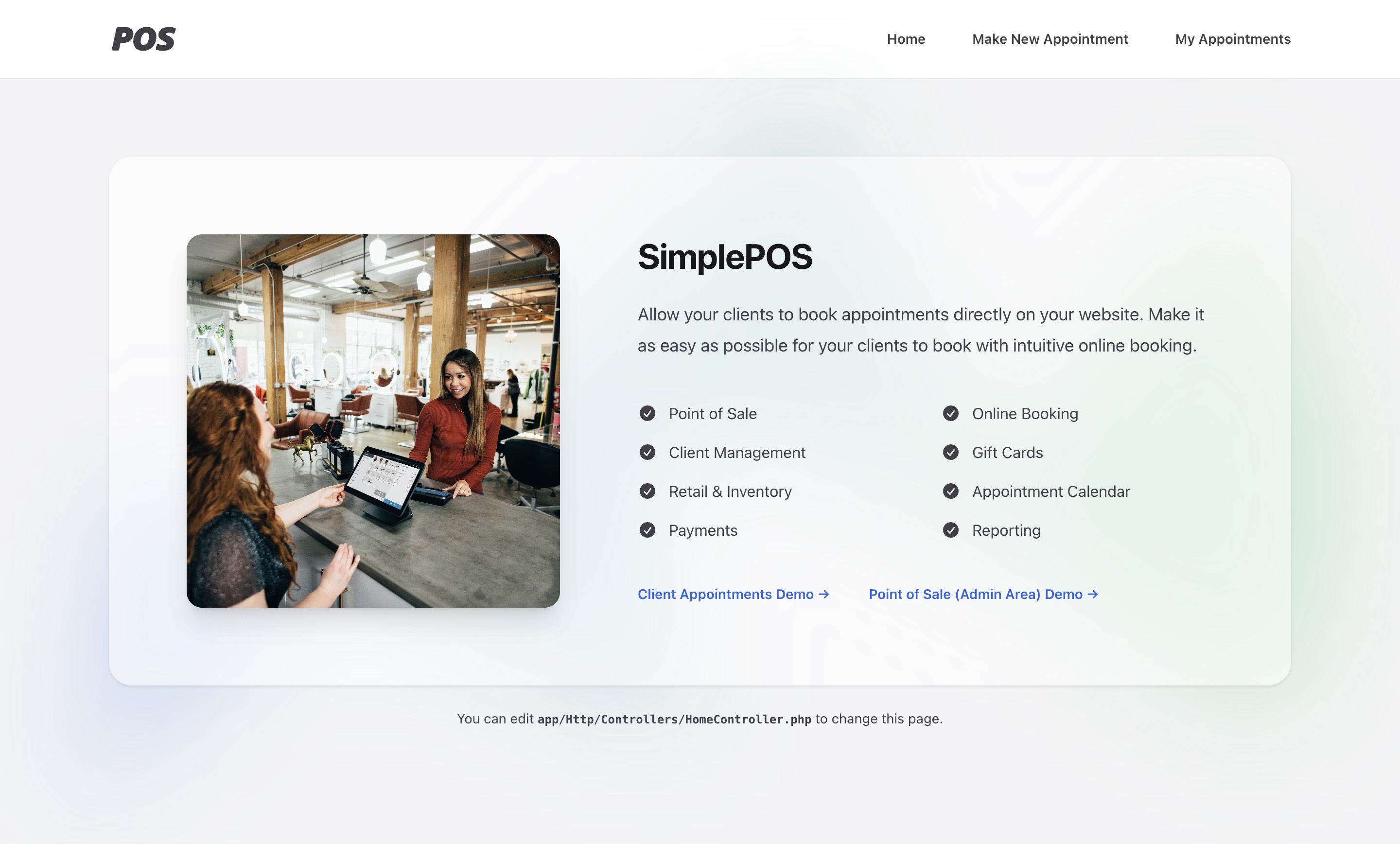
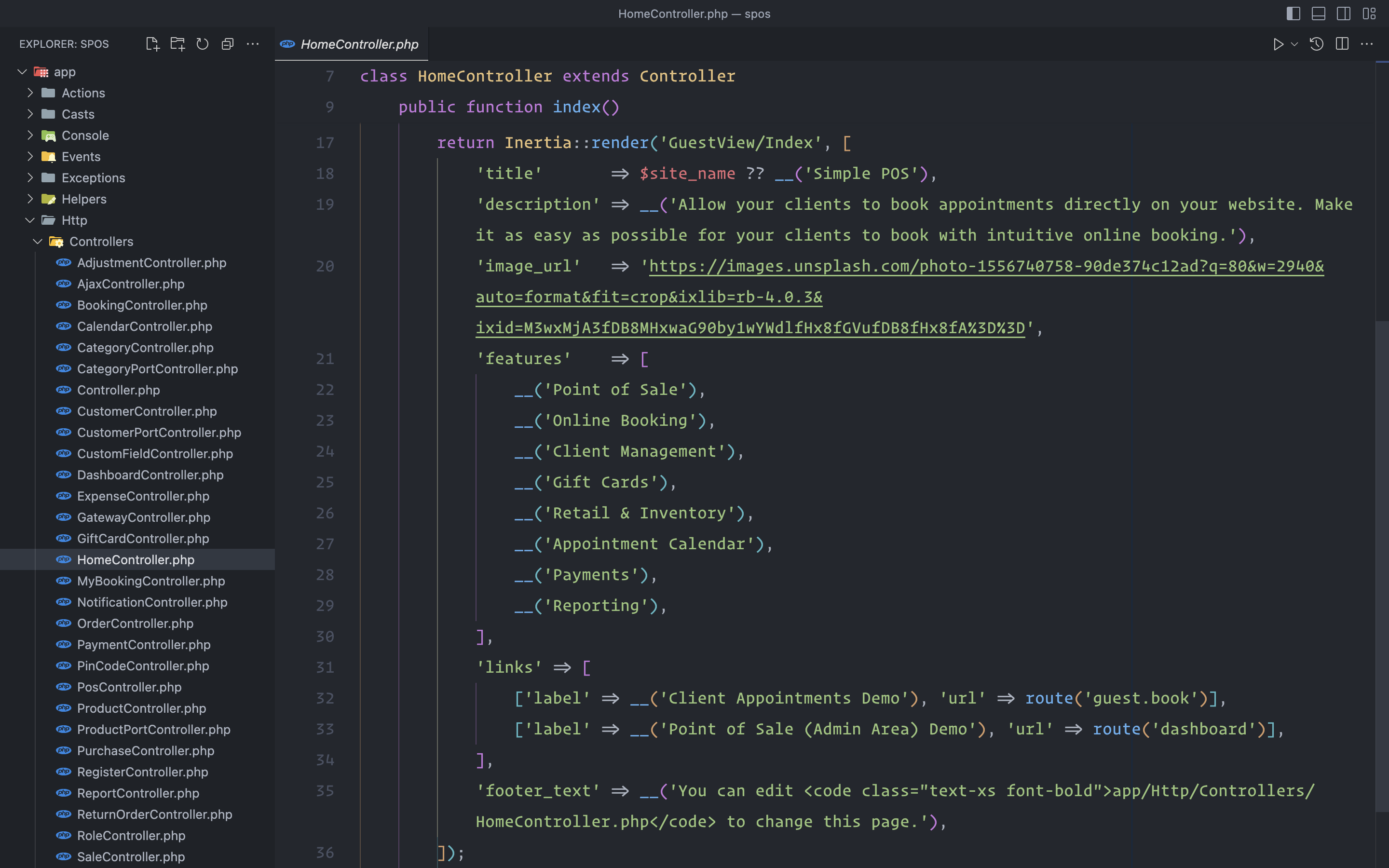
The home page contents can be edited in app/Http/Controllers/HomeController.php file.
If you don't need appointment bookings then you can disable it in settings.
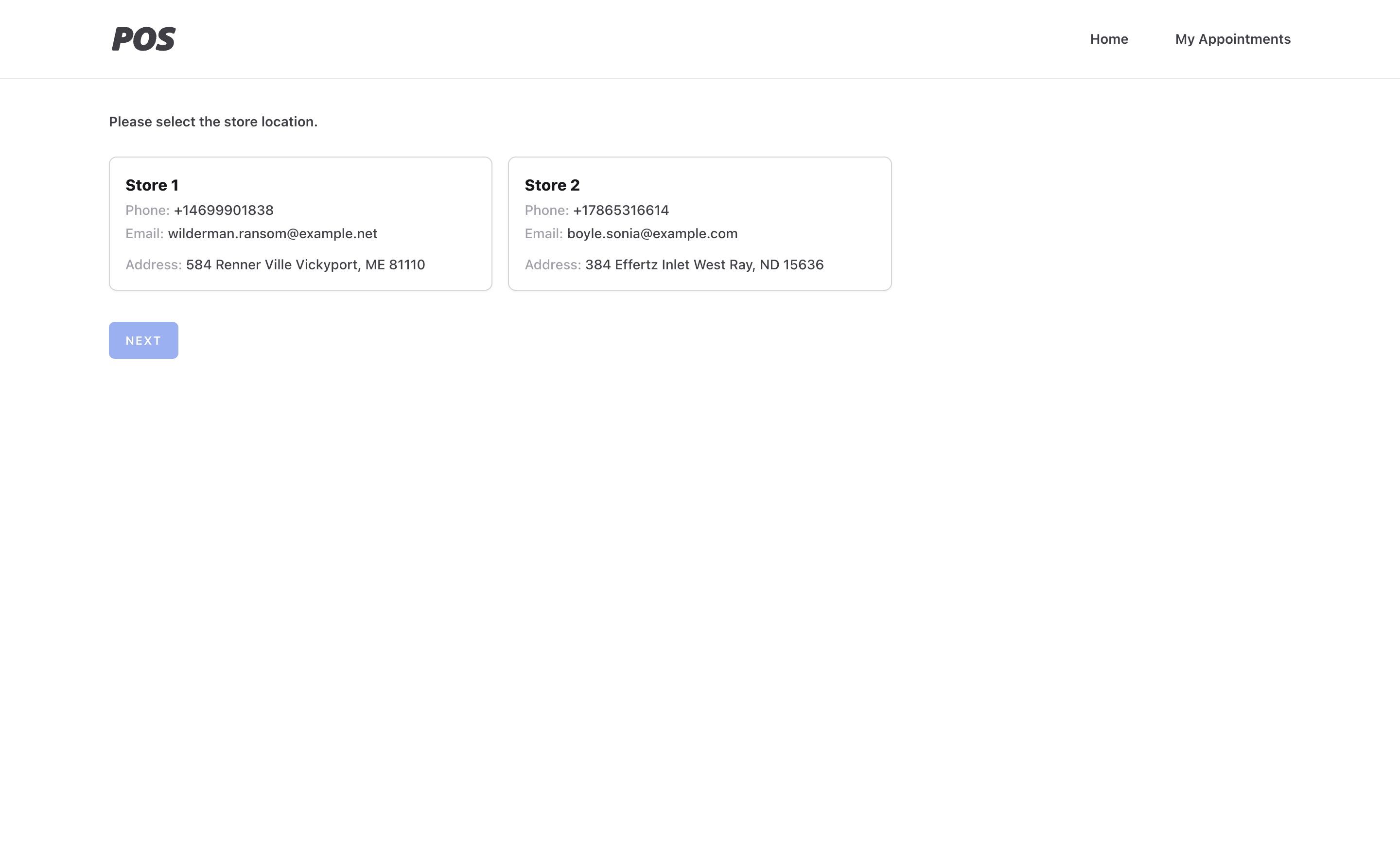
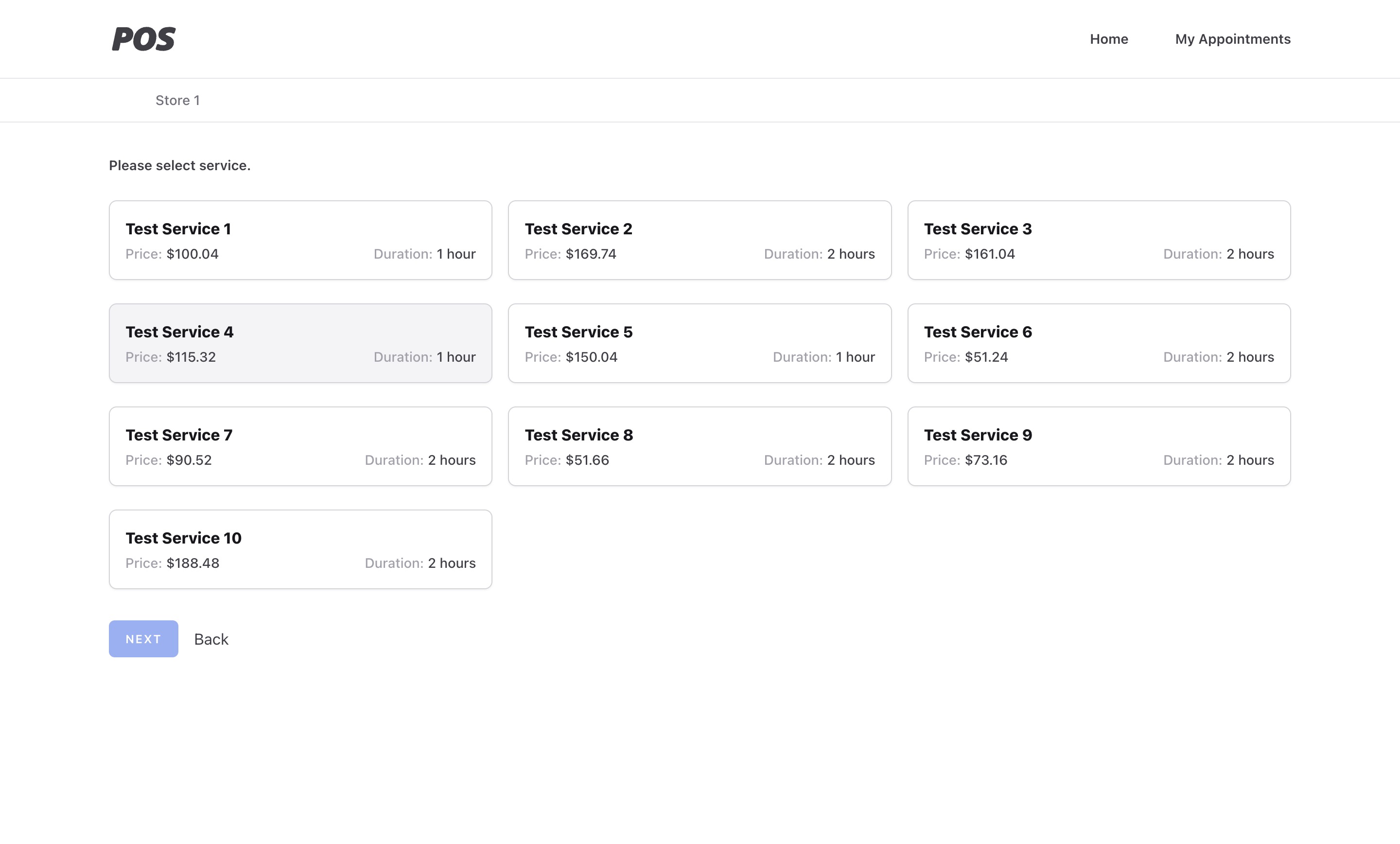
Client Booking Process
Step 1: select store
Step 2: select service
Step 3: select date
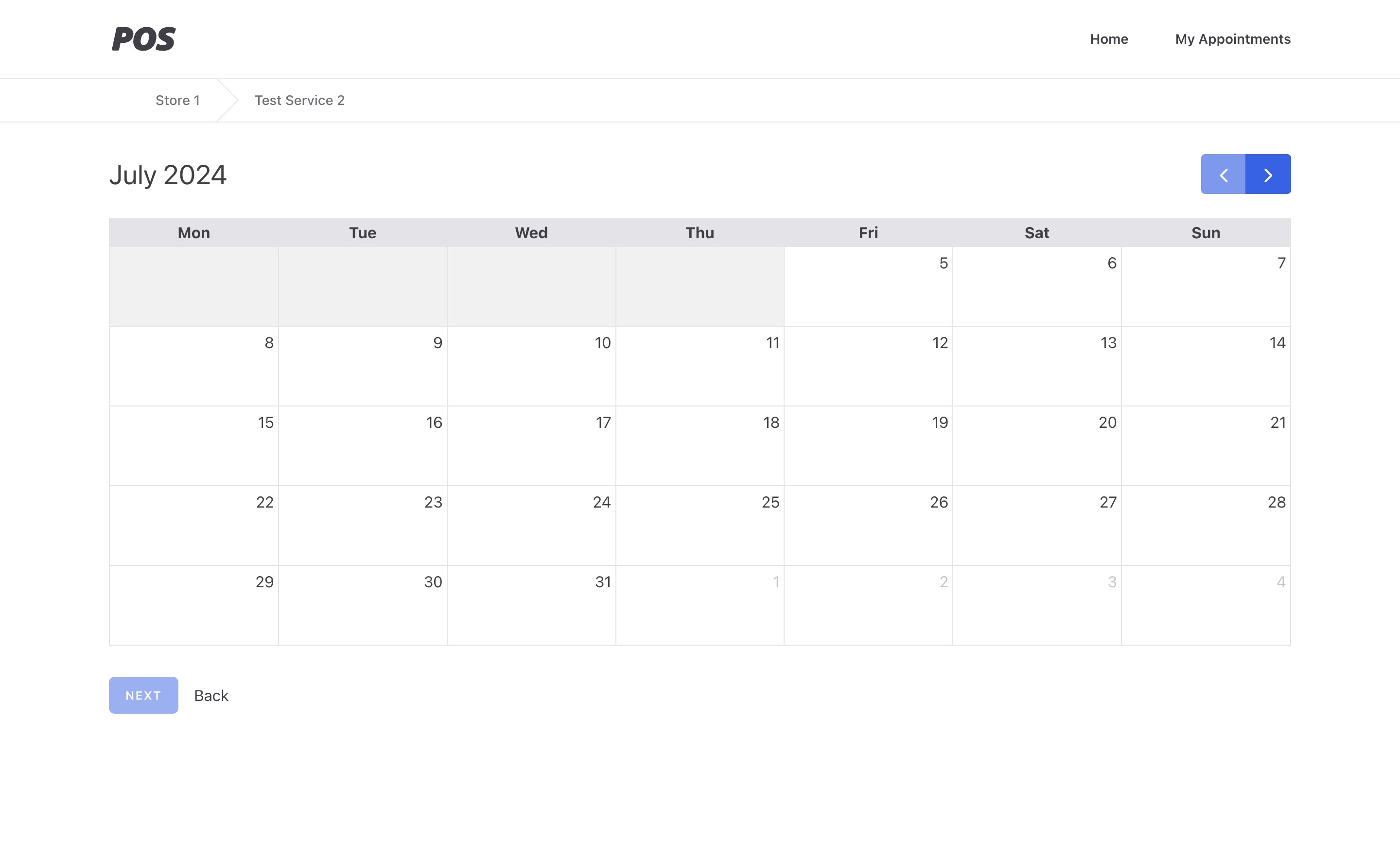
Step 4: select time

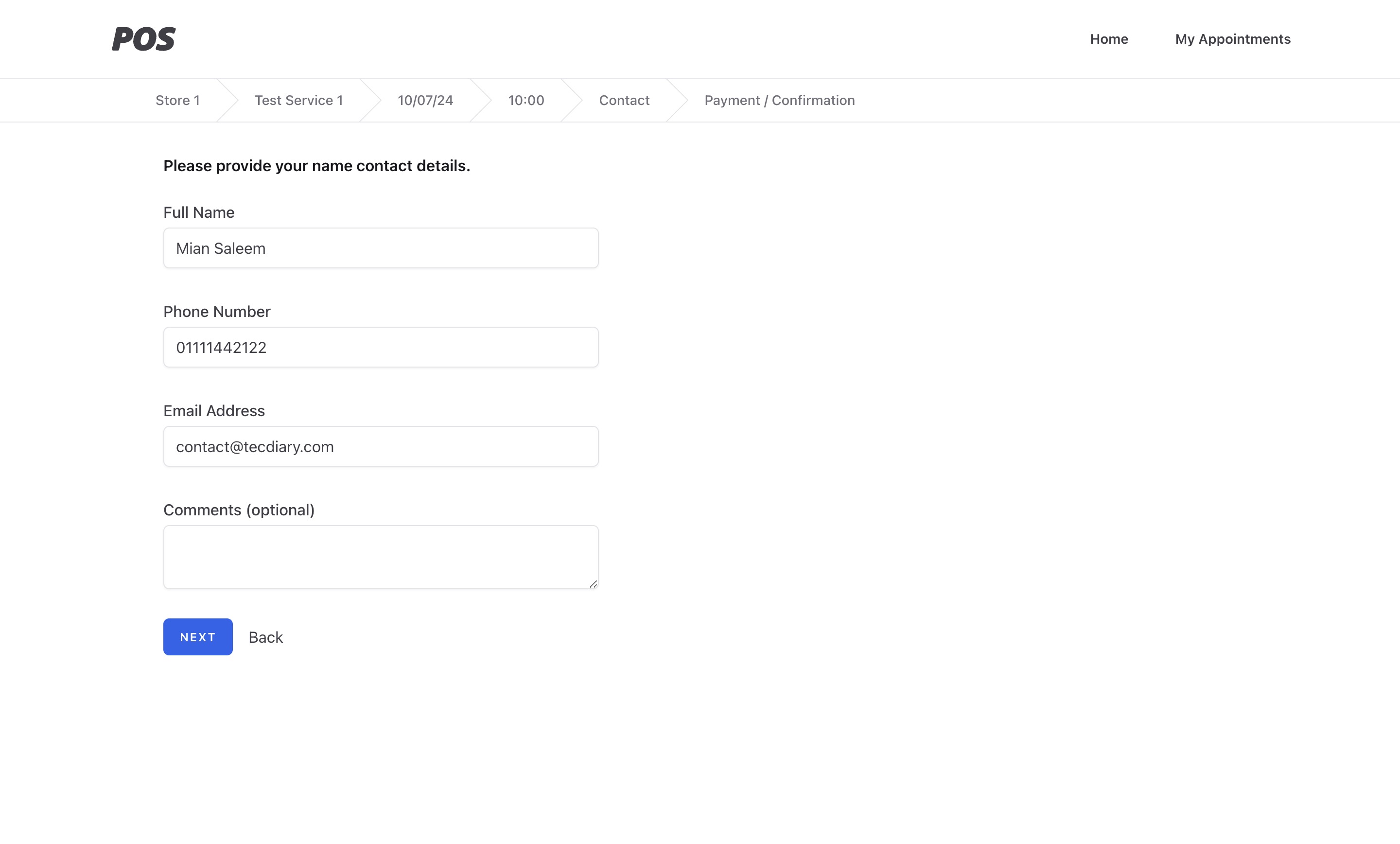
Step 5: contact form
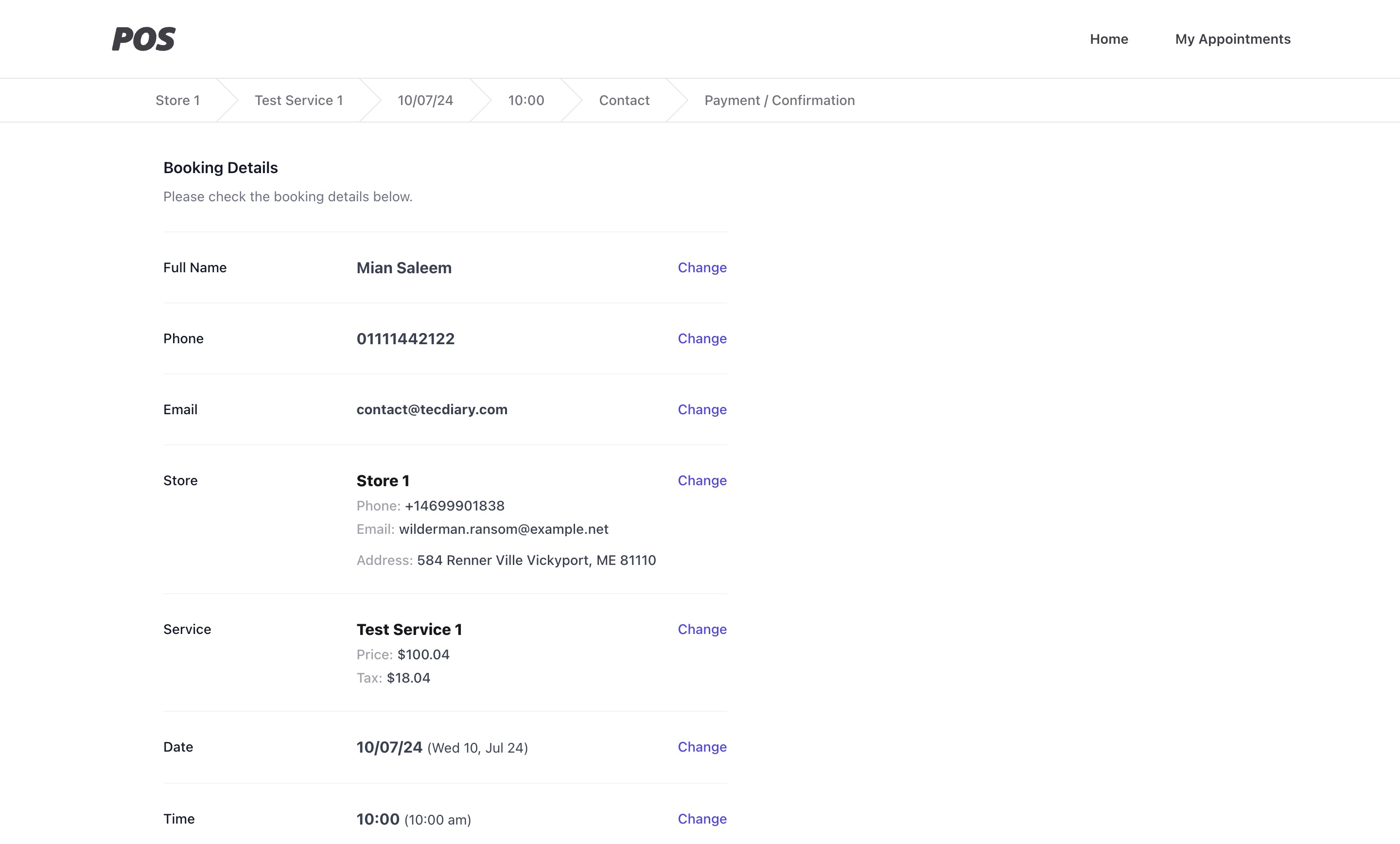
Step 6: confirm (payment)
The admin design has three sections.
- Top bar (logo and quick menus)
- Left side bar (all the menu)
- Page content area.
Dashboard
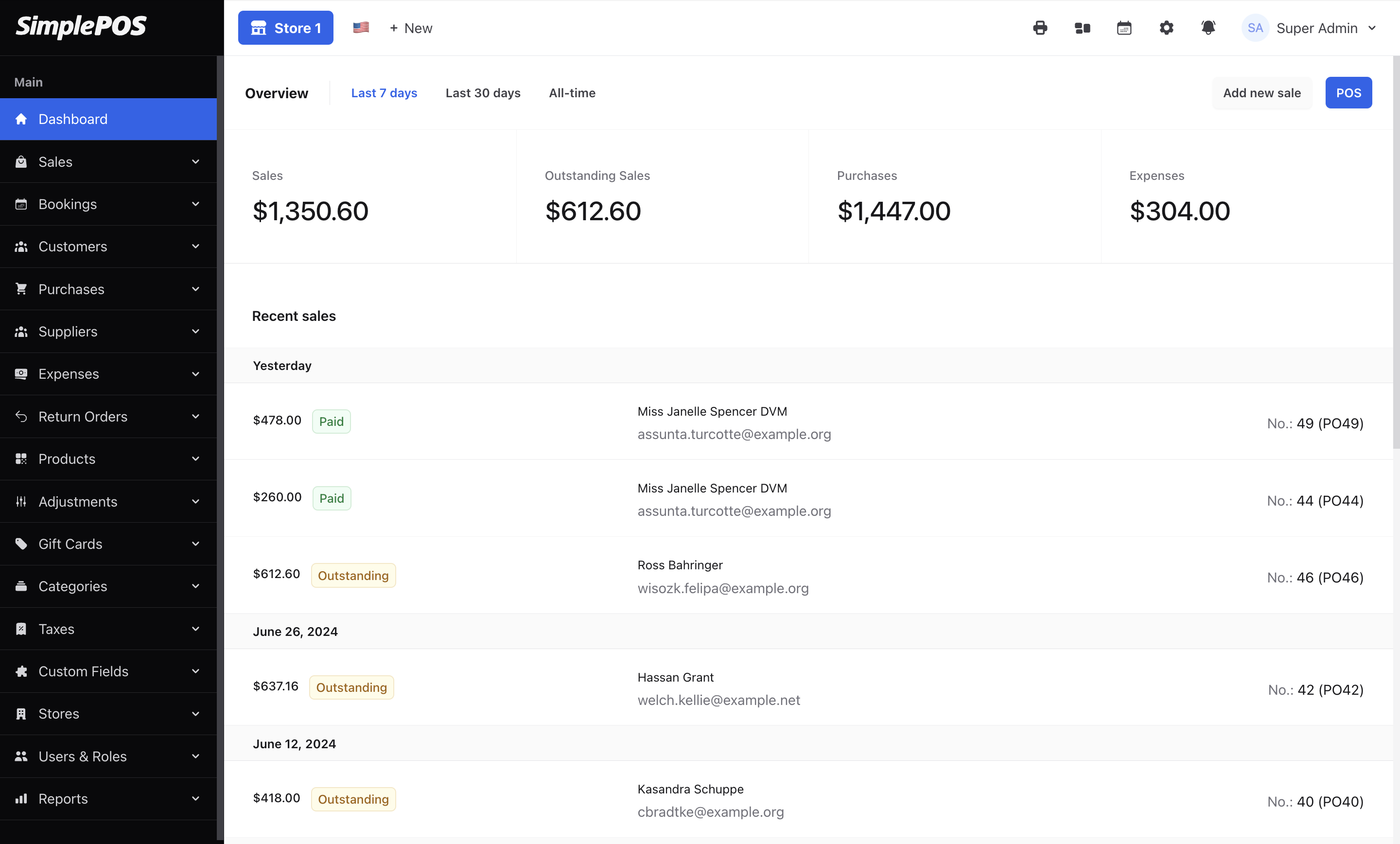
Dashboard has sales overview at top then ten latest sales and 3 latest customers. The overview sales can have three options to choose from i. 7 days (default) ii. 30 days iii. All time
Table Design
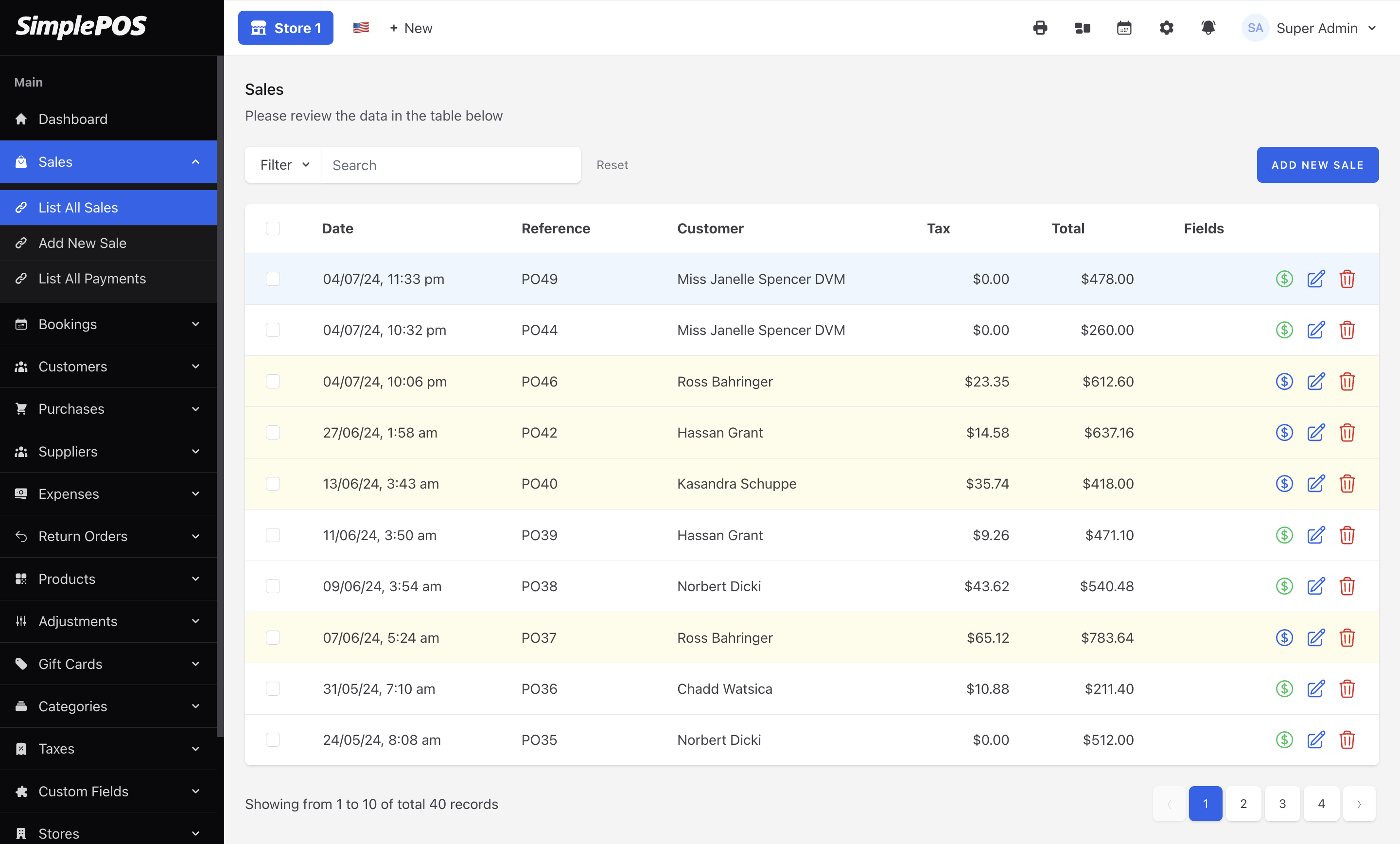
All the record on listing page are shown in the table and the contents has following sections
- Header for the page
- Filters, Search and Action button at right.
- Table for records
- Table info and the pagination
Soft Delete
All the records in SimplePOS are soft delete means they will not be delete from database unless you delete them permanently. So every table has the Trashed filter to view the active (not trashed), active and deleted (with trashed) and delete (only trashed) options to choose from.
Store Selection
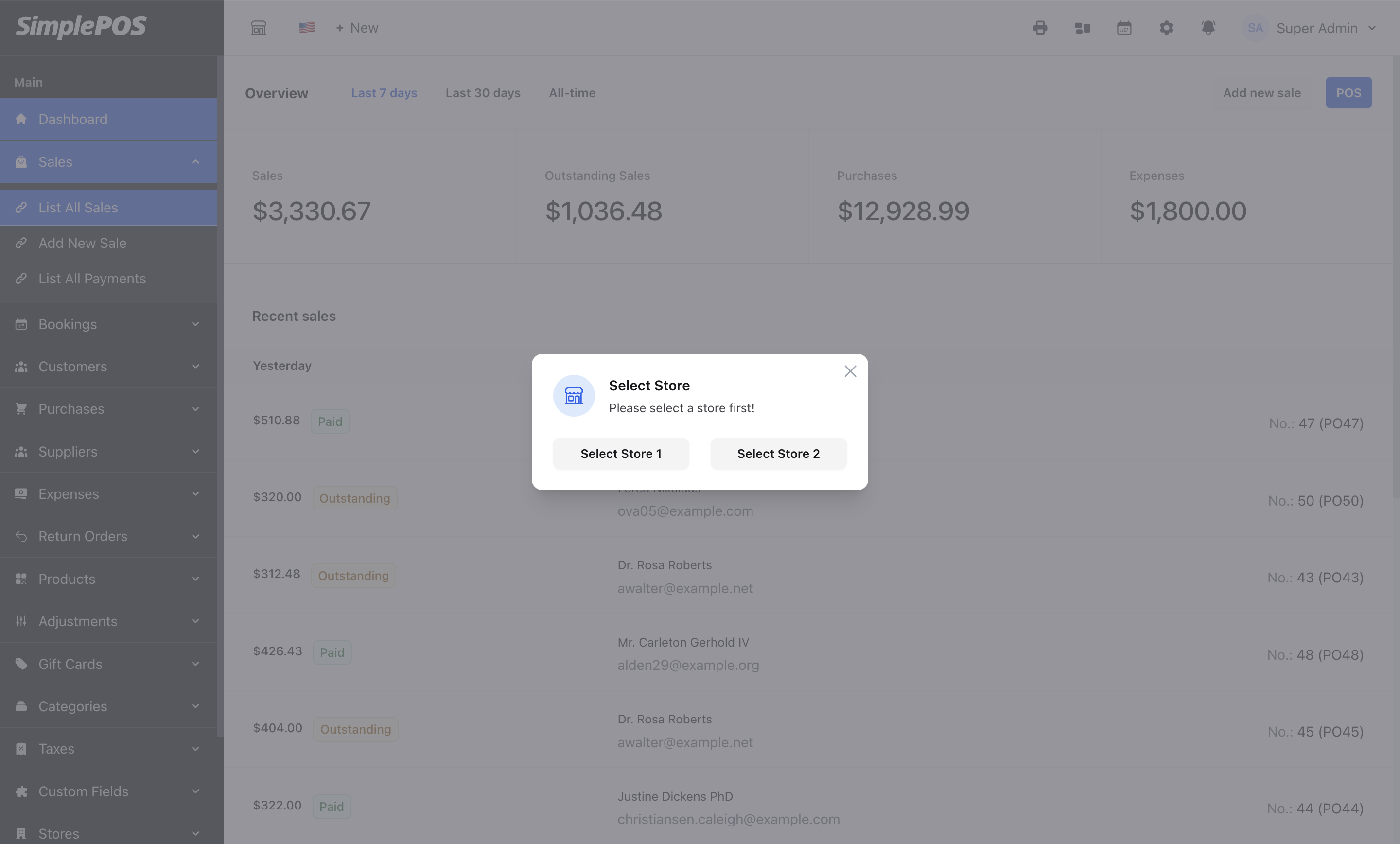
To access any the following page, you will need to select the store first.
- Sales
- Bookings
- Expenses
- Payments
- Purchases
- Adjustments
- Return Orders
Products
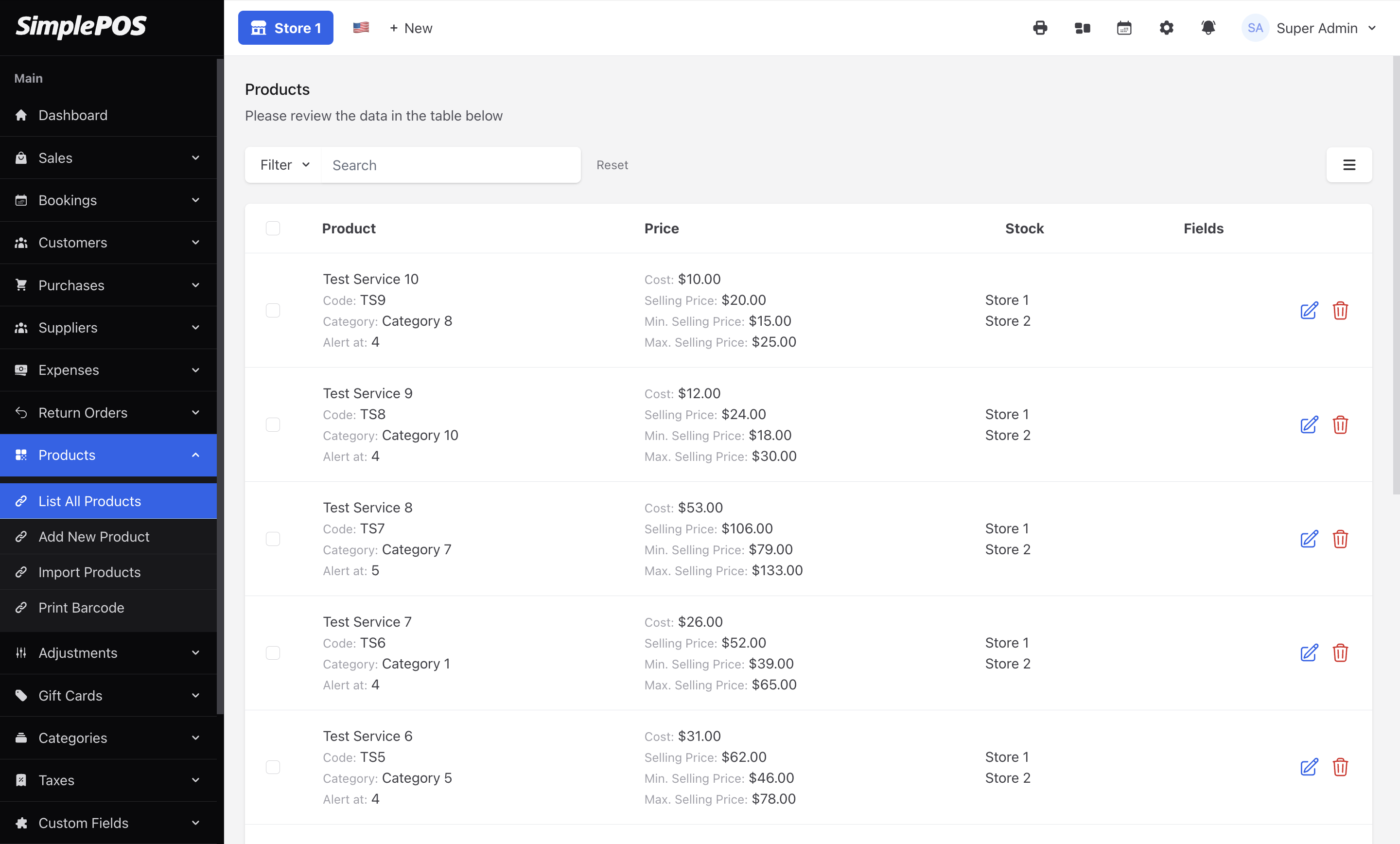
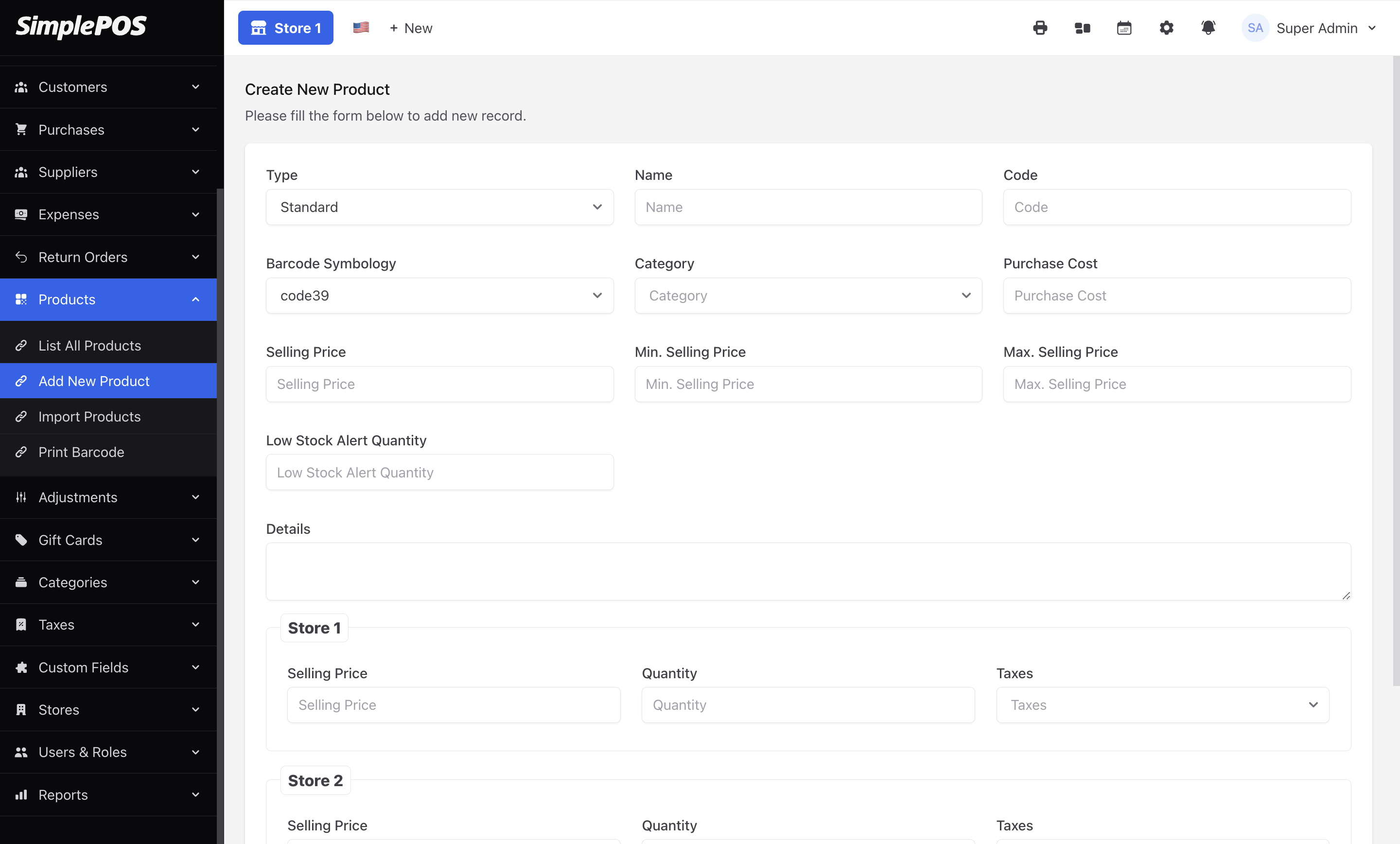
SimplePOS offers comprehensive product and service management, allowing you to set different prices and taxes for each store. You can easily organize products into categories, view and edit details such as name, price, and stock levels, and streamline inventory tracking.
With support for tax settings, you can apply appropriate tax rates to individual products based on location and business needs. This feature helps ensure compliance with local tax regulations and simplifies tax management.
Additionally, SimplePOS includes product label and barcode printing, making product identification and checkout processes efficient and accurate.
Sales
SimplePOS makes it simple to manage the full sales lifecycle, from creating new orders to finalizing transactions and updating inventory.
Purchases
Simplify the process of ordering products from suppliers. Create orders based on your current stock levels and desired quantities.
Expenses
Business expenses are the costs incurred in the ordinary course of running a business. These expenses are necessary for the business to operate and can typically be deducted from the business's income. Track your Business expenses and generate reports whenever you need them.
Adjustments & Return Order
SimplePOS allows you to adjust stock levels for any store, accept customer returns, and manage returns to suppliers. These actions will automatically sync with your inventory.
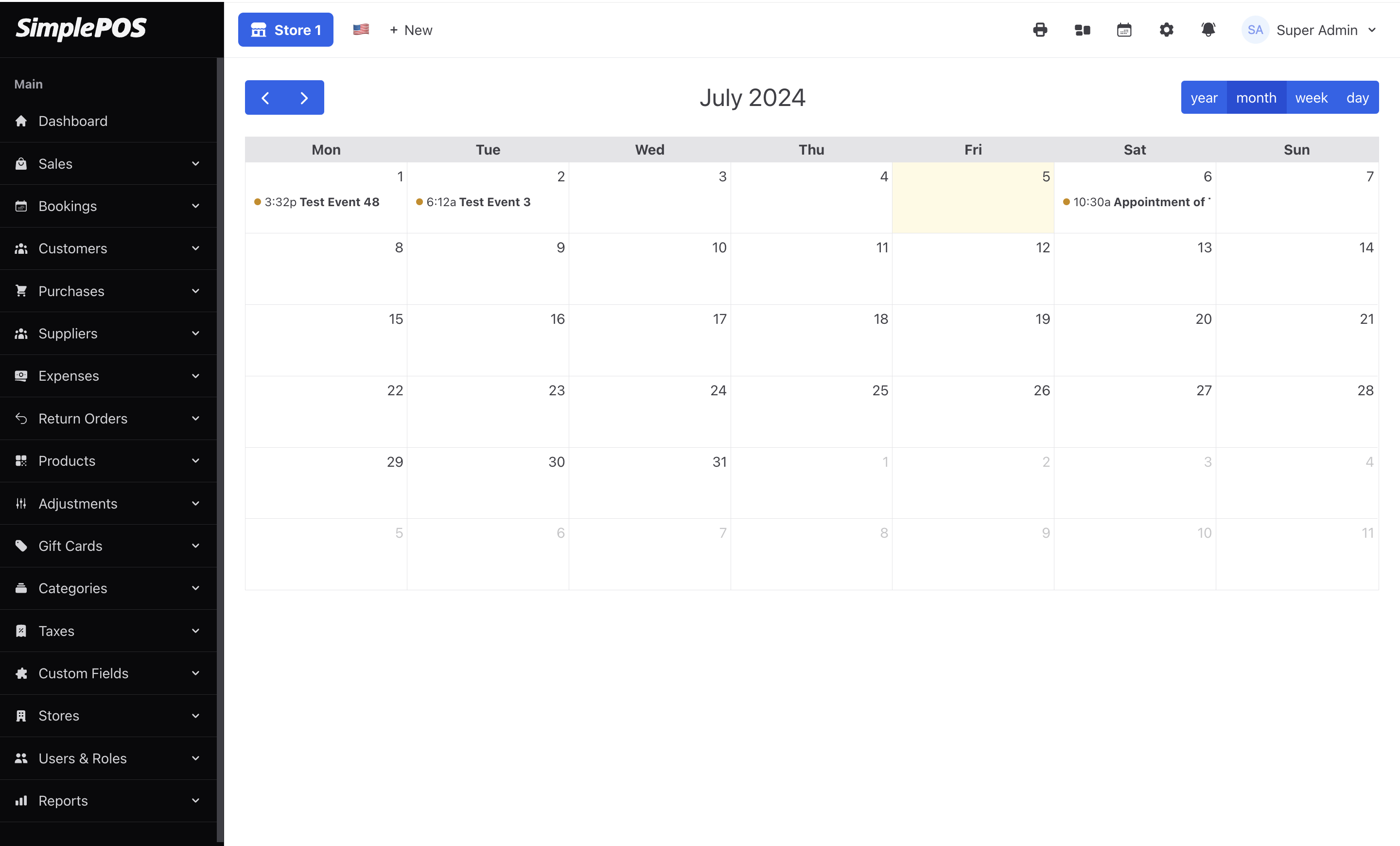
Bookings & Calender
SimplePOS offers a robust appointment booking and calendar management system, ideal for spas, salons, and similar businesses, enabling clients to schedule appointments online and streamlining the scheduling process.
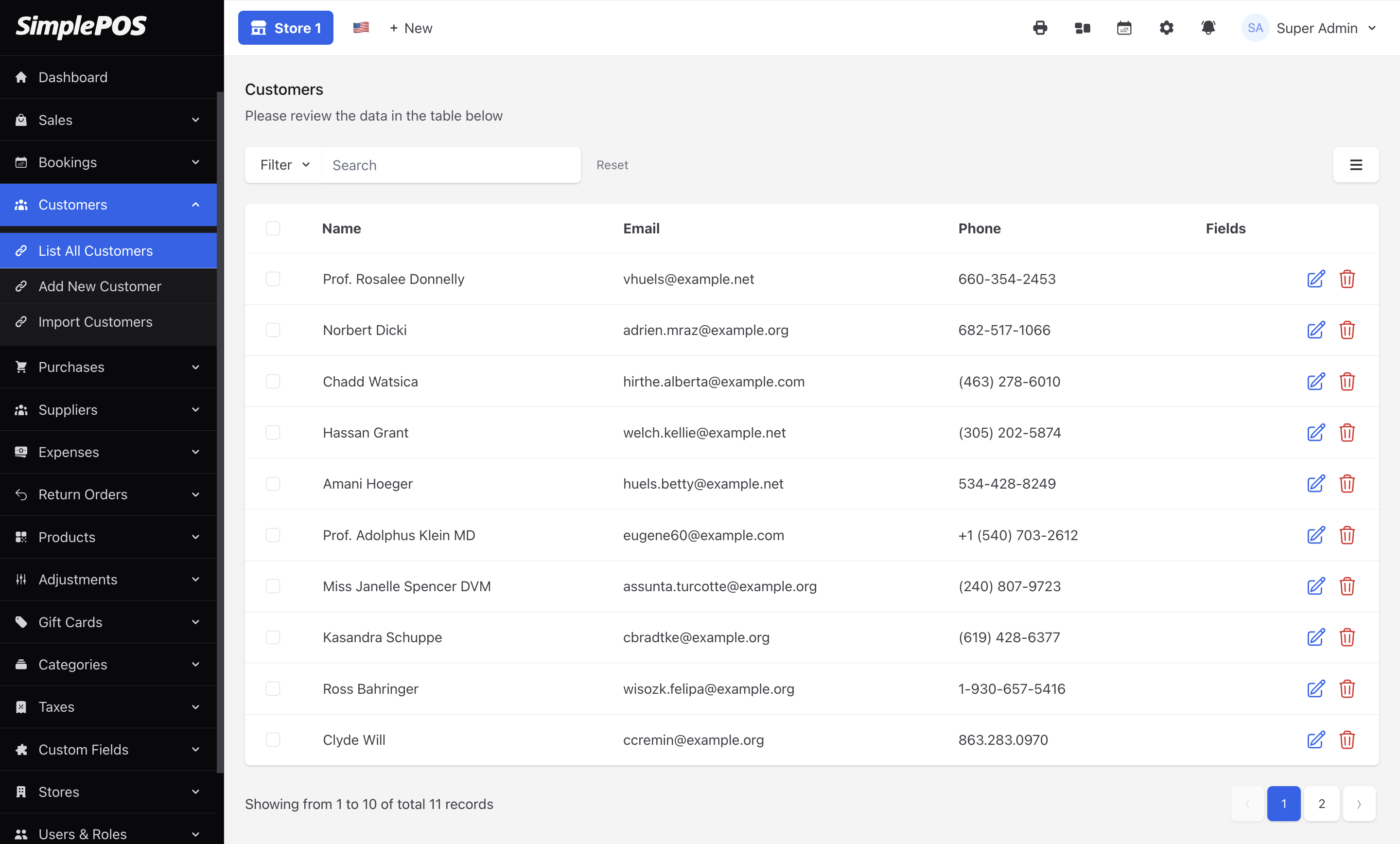
Customer & Supplier
SimplePOS has a feature to manage customers and suppliers, allowing users to record names and contact details for efficient communication and accurate record-keeping.
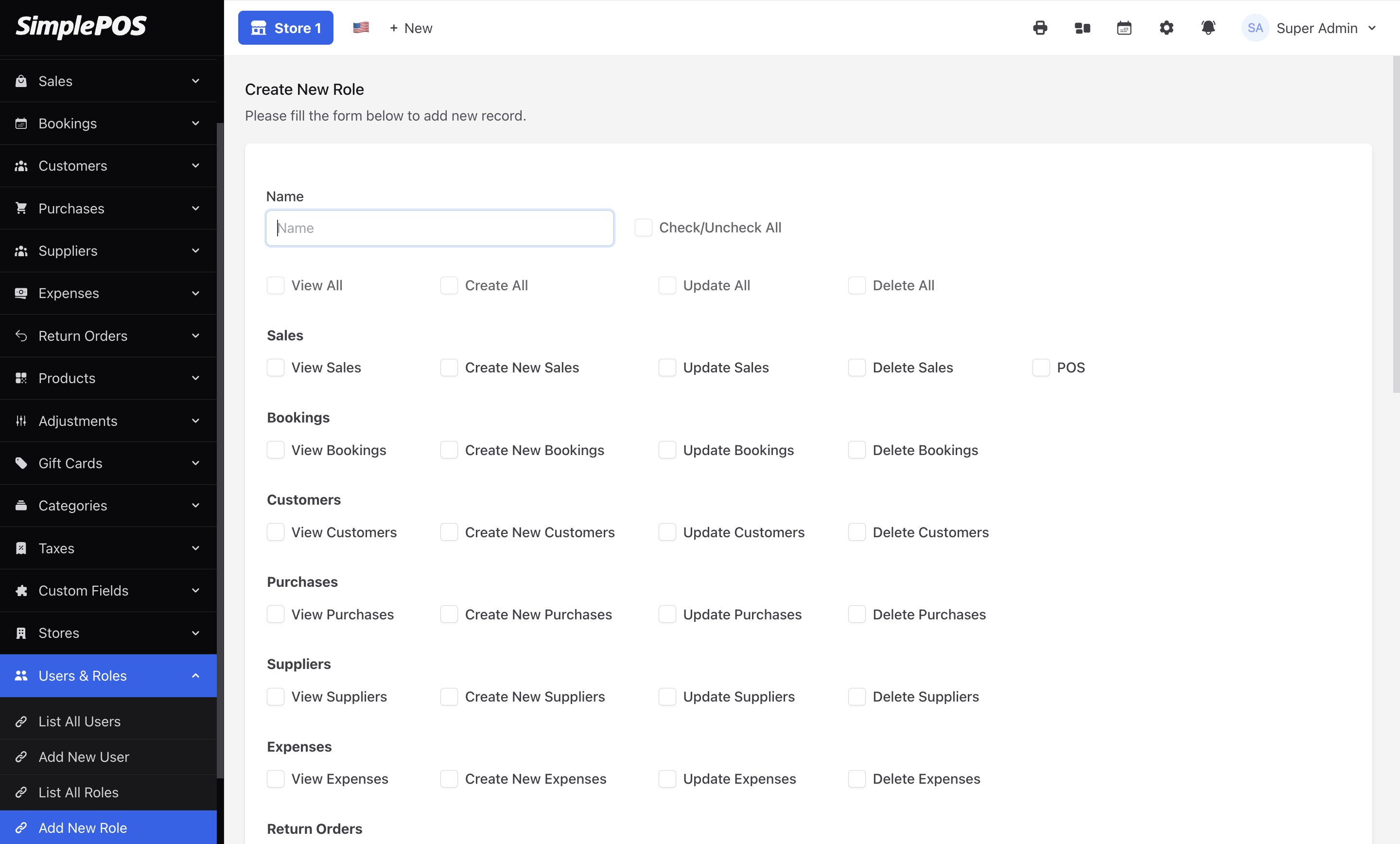
Users & Roles
SimplePOS provides robust staff management features, allowing you to create and manage individual staff accounts. It also offers customizable user roles to control permissions and access levels for different users.
Settings
SimplePOS includes settings for easy management and configuration of the application, such as site name customization, number formatting, scale barcode configuration, email configuration, theme customization, booking and payment settings.

Reports
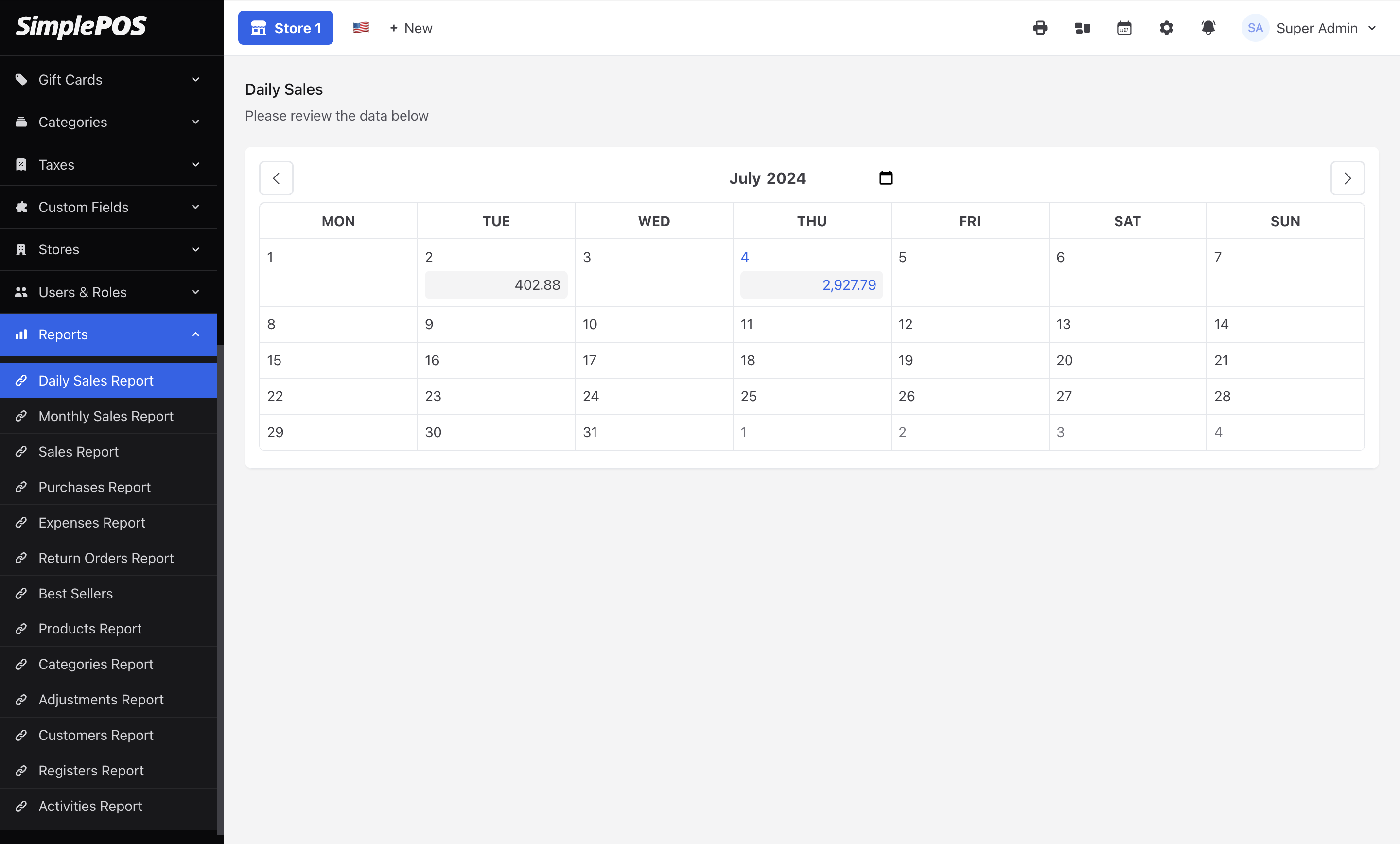
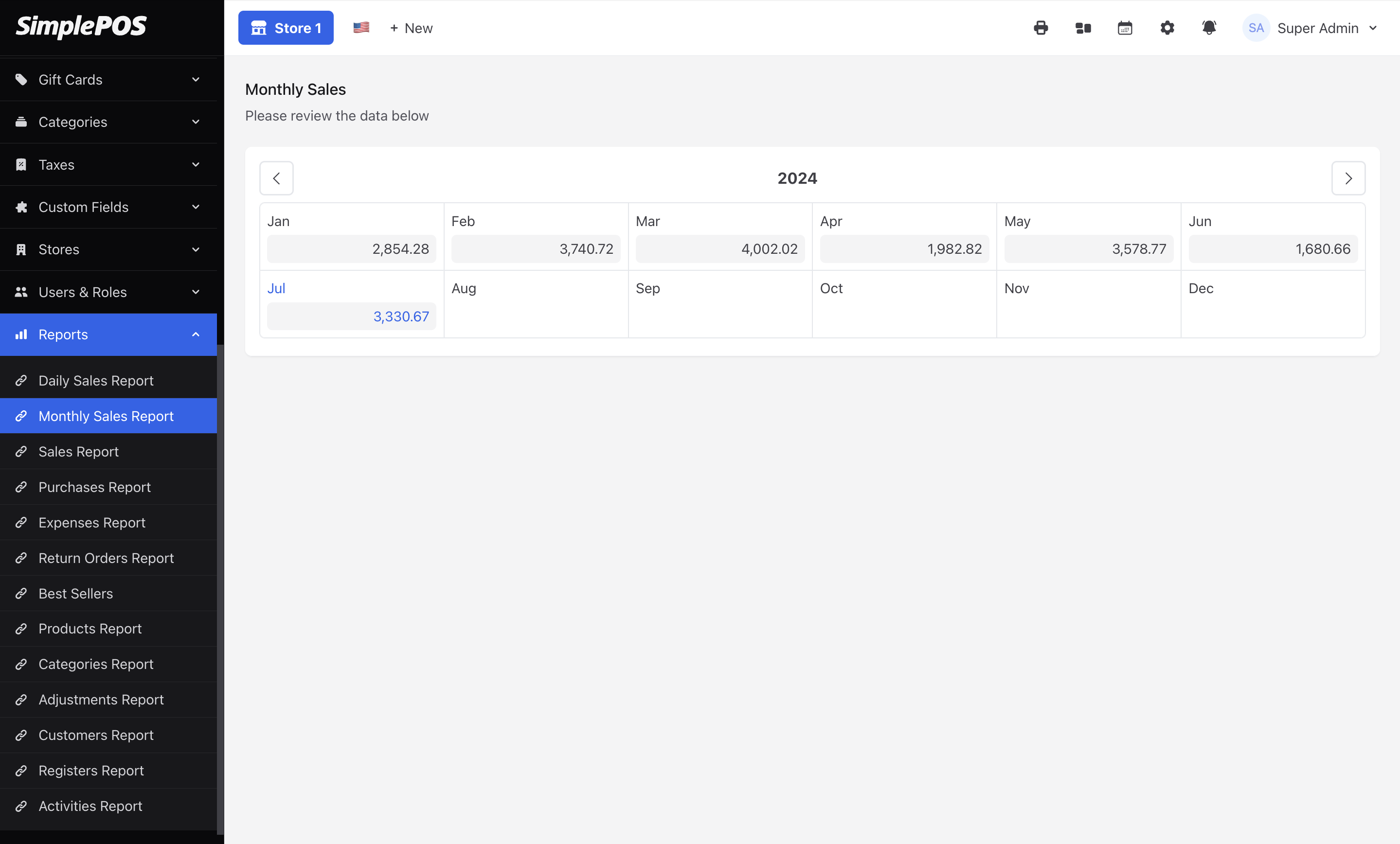
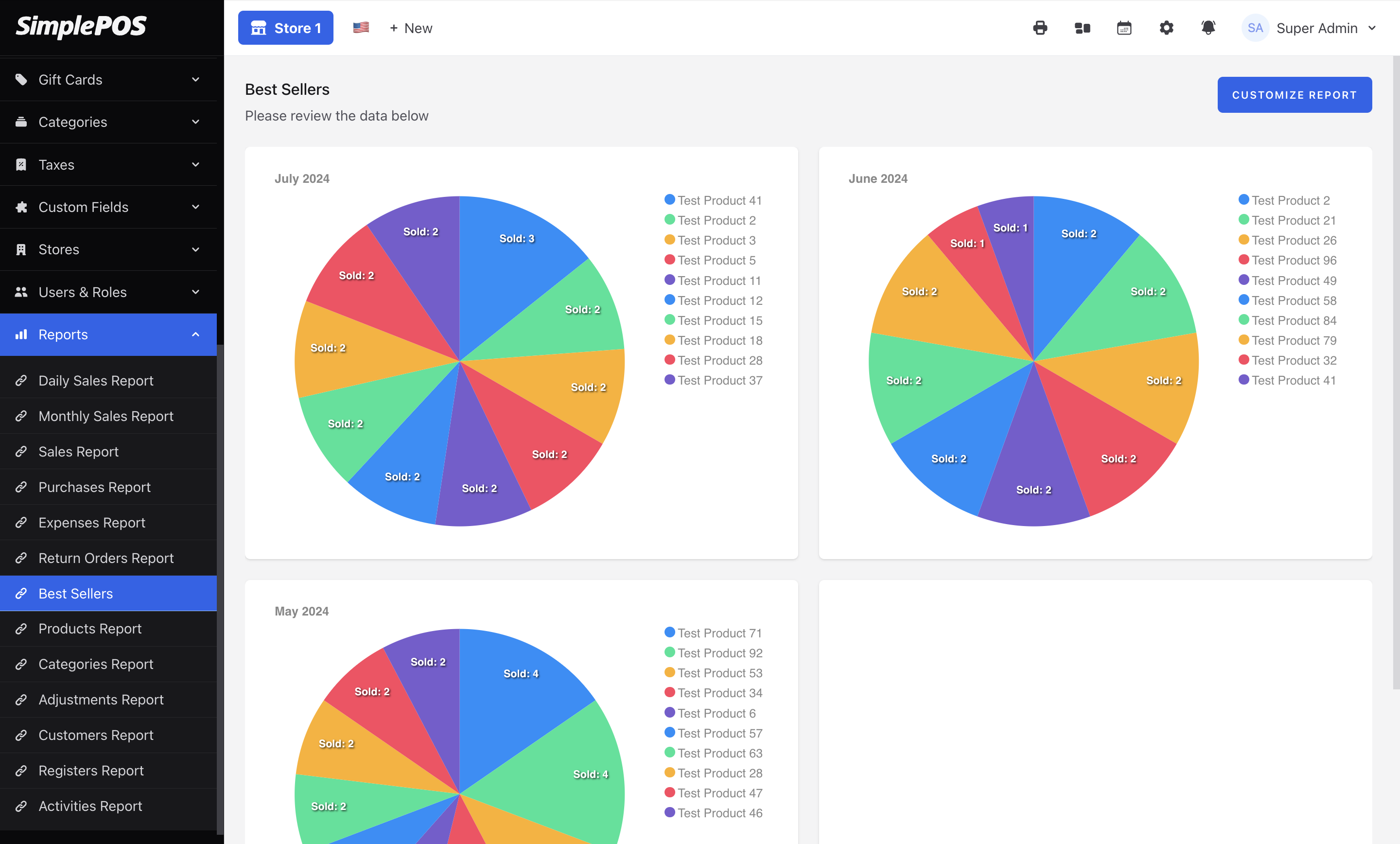
The beta release has the following reports and we will add more in future.
- Daily Sales Report
- Monthly Sales Report
- Sales Report
- Purchases Report
- Expenses Report
- Return Orders Report
- Best Sellers
- Products Report
- Categories Report
- Adjustments Report
- Customers Report
- Registers Report
- Activities Report
Customize Reports
Each report except daily & monthly sale has the customize button to get the desired report for store, user or any other field.
Support
If you didn't find answer here, please ask questions at support portal https://tecdiary.net/support